



When you download the website list from the UserWay dashboard, it will be in CSV (Comma-Separated Values) format. CSV files are a common way to store tabular data.
However, when opening CSV files in Microsoft Excel or OpenOffice, you might encounter issues with how the data is displayed, such as incorrect separators being used. Below are steps to ensure the data is displayed correctly based on the software you are using:
Steps for Viewing CSV Files in Microsoft Excel
- Open the CSV File: Navigate to the location of the CSV file on your computer. Double-click on the file to open it in Microsoft Excel.
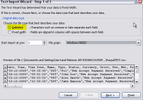
- Use the Text Import Wizard: If the “Text Import Wizard” appears, select the option labeled “Delimited” and click “Next.”
- Select the Correct Separator: Choose the “Comma” option as the delimiter in the next step of the wizard and click “Finish.”

Steps for Viewing CSV Files in OpenOffice
- Open the CSV File: Navigate to the location of the CSV file on your computer and double-click to open it in OpenOffice.
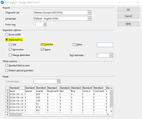
- Use the Text Import Dialog: When the “Text Import” dialog appears, check the option labeled “Separated by” and select “Comma” as the separator.
- Proceed to Open the File: Click “OK” to load the file with the correct settings.

By following these steps, you can ensure that the website list you downloaded from the dashboard is displayed correctly in both Microsoft Excel and OpenOffice.
If you require additional assistance, feel free to contact us at desk@support.userway.org.