



- Login to the UserWay Dashboard: Start by logging in to your UserWay account via the dashboard link: https://manage.userway.org. Enter your credentials to access the dashboard.
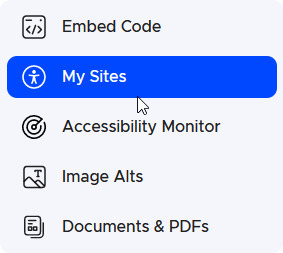
- Navigate to “My Sites”: Once logged in, locate the side menu and click on “My Sites”. This action will display a list of websites associated with your account:
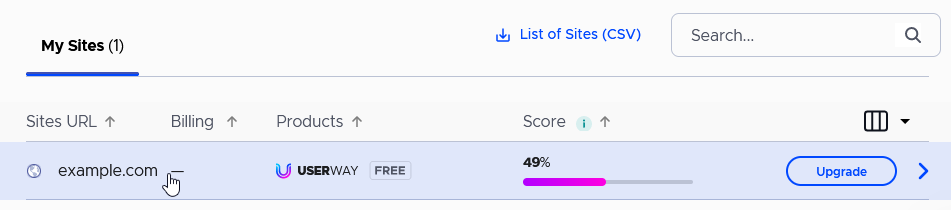
- Select the Desired Domain: Identify the domain name for which you wish to access the usage statistics. Click on the respective domain name with the add-on to proceed:
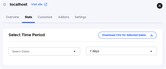
- Access the “Stats” Tab: After selecting the domain, a new window will open. Within this window, navigate to the “Stats” tab. This tab houses all the usage statistics data for the selected website:
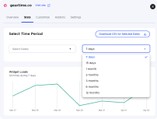
- Choose Time Period: There are two options available to select the time period:
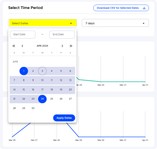
- Click on “select dates”. This will prompt a calendar interface where you can choose both the start and end dates for the desired period:
- Click on “7 days”. This will prompt you to select a predefined date range:
- Click on “select dates”. This will prompt a calendar interface where you can choose both the start and end dates for the desired period:
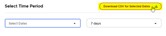
- Download CSV: Once you’ve selected the appropriate time period, click on “Download CSV for Selected Dates”. This action will initiate the generation of a CSV file containing the usage statistics data for the specified time-frame:
- Check Administrator Email: Upon completion of the CSV generation process, the file will be delivered to the email address associated with the administrator account. Ensure to check the inbox of the administrator’s email for the CSV file:





If you require additional assistance, feel free to contact us at desk@support.userway.org.