You can learn more about the different team member permission levels here: https://intercom.help/userway/en/articles/9037732-userway-dashboard-team-member-permissions
Follow the guide below to add new team members to your UserWay account via the UserWay Dashboard.
- Navigate to the Team Management section of the UserWay Dashboard
- Click on Invite Member
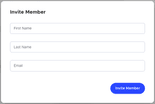
- Enter First Name, Last Name, and Email, and click Invite Member
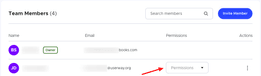
- Click Permissions next to the name of the newly added team member
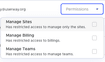
- Select the Permissions you would like to set for the new team member. Learn more about the different Permission levels here.
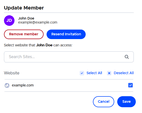
- You can limit access for the new team member to specific sites by clicking the 3 dots next to the Permissions dropdown and click Edit
- Select the sites you would like the new team member to be able to access and click Save