UserWay’s AI-Powered Accessibility Widget
helps you reach a wider audience while offering protection from accessibility-related lawsuits. It features automated tools, website customization controls, and can enhance your site’s accessibility to grow your compliance and inclusivity.
- Is the UserWay widget compatible with my website?
- Upgrade to the Pro version
- Get your code to implement the widget
1. Is UserWay’s Accessibility Widget Compatible with My Website?
The widget can be installed on any platform or website that supports JavaScript (JS) and has a fully qualified domain name (FQDN) (e.g., userway.org) to connect to a widget subscription. Installation steps for different platforms can be found in our platform installation guide.
2. Upgrade to the AI-Powered Pro Accessibility Widget
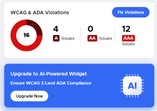
- Visit the website you want to upgrade and log in to the widget settings:
Access the specific website where you want to upgrade the UserWay widget and log in to the widget settings. - Click on Upgrade Now, and then click Upgrade Now again:
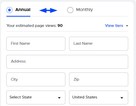
Locate the “Upgrade Now” button and initiate the upgrade process by clicking it. Confirm the upgrade by clicking “Upgrade Now” again. - Select either a monthly or annual subscription:
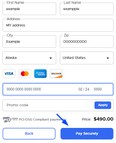
Choose your preferred subscription plan—monthly or annually—based on your needs. - Add your credit card information. Click Pay Securely to confirm the payment:
Enter your credit card details and securely confirm the payment by clicking “Pay Securely.”



3. Get Started with UserWay’s 7-Day Free Trial
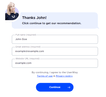
- Create a UserWay Account:
Visit UserWay’s sign-up page and fill out the form with the required information.- Full Name (Required)
- Email Address (Required)
- Website URL (Required)
Once completed, click on the “Continue” button.
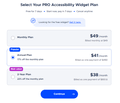
- Choose Subscription Plan:
After filling out the form, you’ll be prompted to select either a monthly or annual subscription plan. Choose the option that best fits your needs. - Proceed to Payment:
Click on the “Continue to Payment” button to finalize your subscription. Follow the provided instructions to complete the payment process.


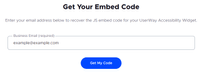
Get Your Code to Implement the Widget
- Go to https://userway.org/code
- Add the email address of your UserWay account.
If you require additional assistance, don’t hesitate to contact us at desk@support.userway.org